

Documentation Index
Fetch the complete documentation index at: https://checkly-422f444a-ferran-pl-docs-update.mintlify.app/llms.txt
Use this file to discover all available pages before exploring further.
Showing maintenance windows on a status page is part of the Communicate add-on. View pricing.
Before you begin
Before you begin
- A status page with at least one service.
- The Communicate add-on, which unlocks status page maintenance. Without it, the Status page visibility section of the maintenance window stays locked.
- Access to the maintenance window feature.
Showing a maintenance window on your status page
You configure status page visibility from the maintenance window itself.Open or create a maintenance window
Go to the Maintenance Windows page (the wrench icon in the sidebar) and create a window, or open an existing one. Set its schedule and check behavior as usual.
Enable Status page visibility
In the Status page visibility section, turn on the toggle. This is the master switch for everything below it.
Choose status pages and services
- Show on: select one or more status pages the maintenance should appear on.
- Services affected: choose All services on this page, or pick Specific services. With “All services”, services you add to the page later are automatically covered.
Set a severity
Pick a severity (Minor, Medium, Major, or Critical) to show your users how impactful the maintenance is.
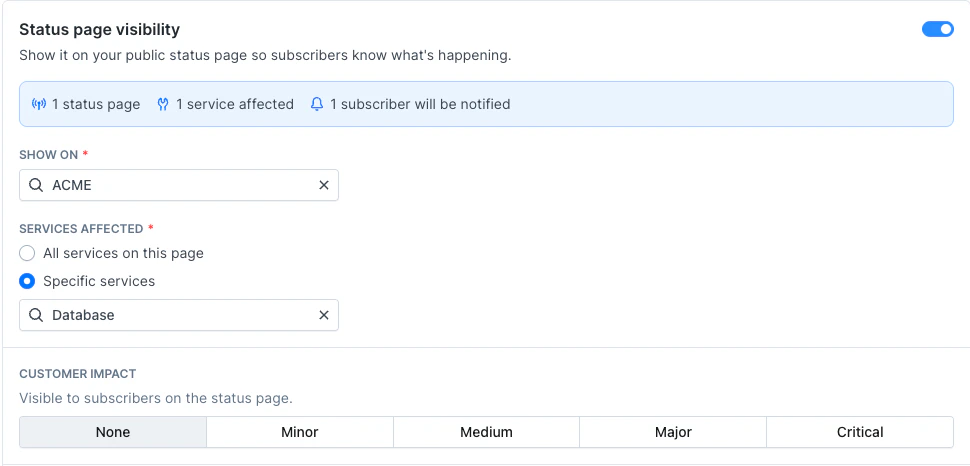
All maintenance times on a status page are displayed in UTC, the same as incidents.
What your visitors see
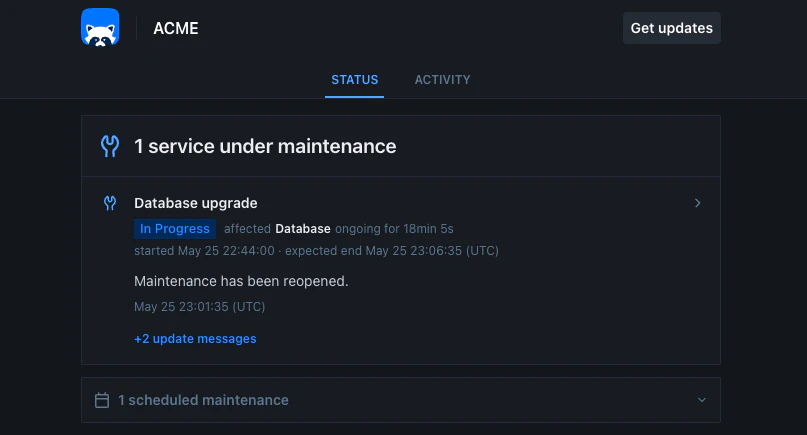
Once a window is visible, it appears on your status page in several places depending on its state:- Upcoming: a collapsible “scheduled maintenances” section on the status page lists maintenance that hasn’t started yet.
- Active: while maintenance is running, a banner at the top shows the affected services as under maintenance, and each affected service is marked with a maintenance icon.
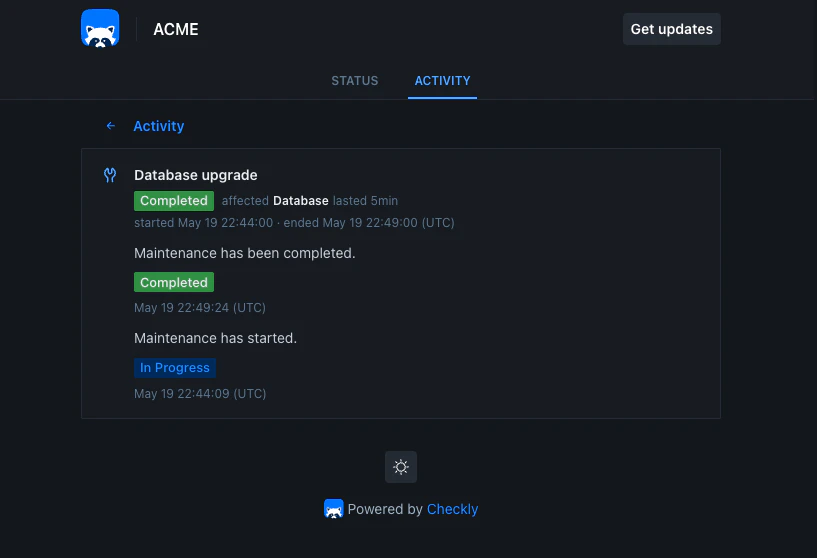
- History: completed maintenance appears in the Activity timeline alongside incidents, and on the 90-day availability chart. Scheduled (upcoming) maintenance is shown only in the upcoming section, not in the activity history.
- Detail page: every maintenance has its own page with the full timeline of updates.
Posting updates to your status page
A maintenance moves through a lifecycle of statuses (Scheduled, In progress, Verifying, Completed, Cancelled) and carries a timeline of updates. On a status-page window, those statuses and updates are exactly what your visitors see, and each update can notify subscribers. Updates are posted automatically when the maintenance starts and completes. You can also post your own from the maintenance’s page, with a message and a new status, to keep visitors informed while the work is happening (for example “running longer than expected, extending by 30 minutes”). On a status-page window you can turn off automatic start or completion, so the maintenance only advances when you act on it. (Windows that are not shown on a status page always start and complete automatically.)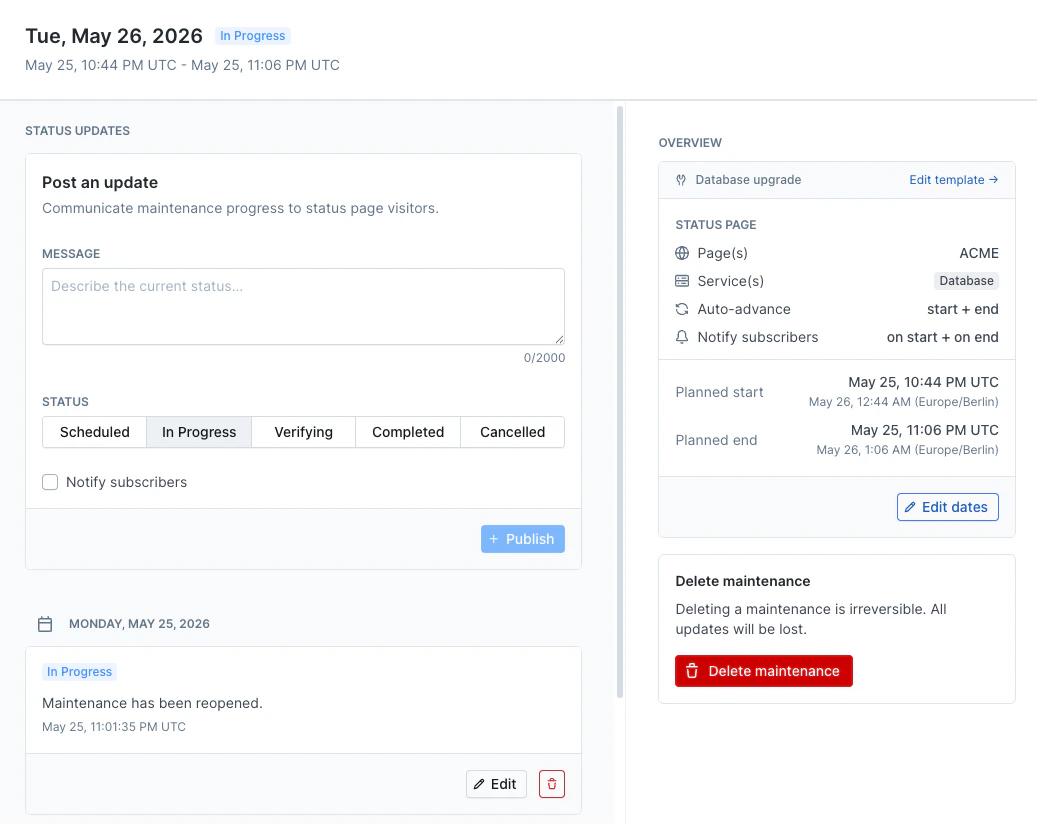
Notifying subscribers
You can notify your status page subscribers about maintenance, the same way you do for incidents.- Notify on start and Notify on end send a notification when the maintenance starts and ends automatically.
- Reminders send up to three advance emails before the maintenance starts, each between 1 hour and 7 days ahead.
- When you post a manual update, you can also choose whether to notify subscribers for that specific update.
Recurring maintenance
If your maintenance window repeats, each occurrence is tracked separately on your status page, with its own status and its own updates. This keeps the history of each individual maintenance run accurate for your users.Suppressing automatic incidents
If you use incident automation to open incidents when a check fails, you can prevent those automatic incidents during planned maintenance. Turn on Don’t open incidents in the status page visibility settings. While the maintenance is active, a failing check on a covered service will not automatically open an incident on that status page. Incidents you open manually are unaffected.This option applies only to the services covered by the maintenance on the pages it is shown on. A service that also appears on another page, where it is not under maintenance, can still get an automatic incident there.